Background Remover: Remove or Change Background in Seconds
By uploading an image you agree to our Terms of Use and Privacy Policy.
Remove the background from any photo in one click. This free background remover finds your subject automatically — no brushing, no selecting — and returns a transparent PNG in seconds. Keep the cutout as-is for design work, or swap the background for white, blue, or any custom color before you download. Portraits, product shots, pets, logos: the AI traces every edge, down to single hairs. Free every day, no signup to try, no watermark on downloads.
Free · No signup · No watermark
How to Remove a Background in 3 Steps
Upload your image
Click or drag in a JPG, PNG, WebP, or BMP up to 20 MB. Unlike photo erasing tools, there is nothing to brush or outline here — the background remover detects the subject by itself, so processing starts the moment your photo lands. No account needed for your daily free edits.
Wait a few seconds
A segmentation model traces the subject edge to edge — people, products, pets, hair and fur included — and lifts it off the background automatically. Most photos finish in a few seconds, and you can watch the cutout appear right on the page.
Download the transparent PNG
Save your cutout as a true transparent PNG, or switch the background to pure white for a marketplace listing, passport blue, or any custom color before saving. If a color is not right, change it and download again — no re-upload, no re-run. One click, no watermark, free every day.
What Kinds of Photos Does It Work On?
People & Portraits — hair-level precision
Cutting out a portrait the old way means clipping paths that turn flowing hair into a helmet. This background remover builds a high-resolution matte instead, so individual strands, flyaways, and the soft edge along the shoulders survive the cut. Upload a headshot or a candid shot and get a transparent PNG that drops straight into a layout, a profile badge, a team page, or a composite. The same precision keeps wigs, hats with stray fibers, and wind-blown hair intact against busy backgrounds.


Product Photos for Amazon & Shopify
Marketplaces want clean product images, and reshooting on a white sweep is not always an option once the item is sold. Photograph the product wherever it is — on a desk, in a workshop, on a kitchen counter — upload it here, and download a version that meets the pure-white background requirement. Because the cutout is a real transparent PNG, the same file works on dark storefront themes, in ads, on social feeds, and in print catalogs without halos around the edges.

Logos & Graphics
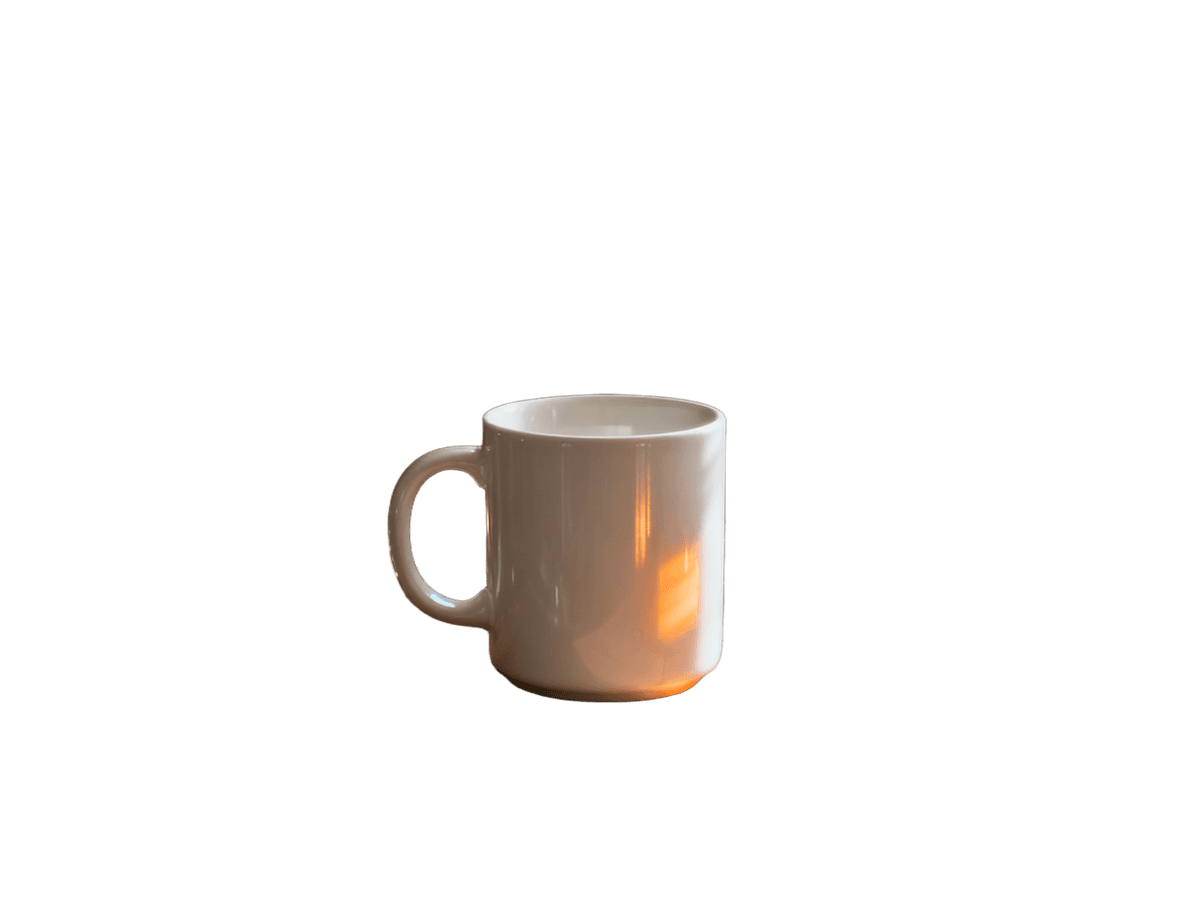
Flat graphics, emblems, and lettering come out clean on transparency, ready to restyle or recolor without the rectangle of their original background. To remove a logo from a photo entirely, use our logo remover; to cut a logo out on a transparent background, use this tool. The two are opposites — one erases the mark and rebuilds what was behind it, the other keeps the mark and throws away everything else. Line art, emblems on letterheads, and screenshots of app icons lift just as cleanly.


Pets & Animals
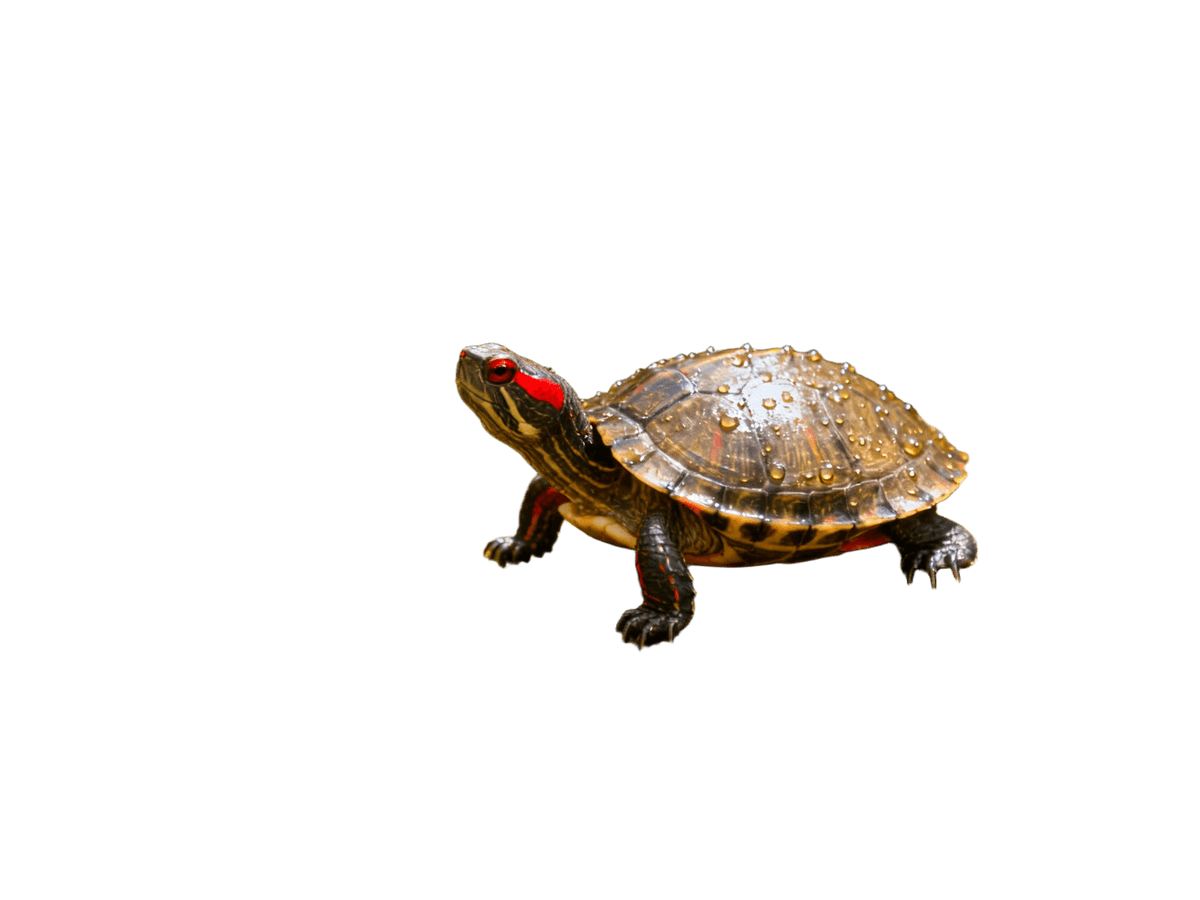
Fur is the classic stress test for background removal — soft, semi-transparent at the tips, and constantly overlapping grass or furniture. The segmentation matte handles both directions at once: fur strands stay, and the grass behind them goes. Cut your dog out of the park for a profile picture, isolate a cat for a custom sticker, or lift a horse off its field for a poster. Whiskers and eyelashes usually survive intact. Indoor shots with mixed lighting come out just as clean as daylight ones.

Cars, Furniture & Other Objects
Large objects with hard edges are the easy case — cars, chairs, tools, appliances, sneakers — but reflections are the trap: glass and chrome pick up the environment around them. The cutout keeps the object's own highlights and drops the reflected world behind it. That makes this background remover a quick way to build clean catalog shots, insurance photos, or listing images where the object needs to stand alone on white or transparency. Bikes, instruments, and sports gear follow the same pattern.


Change the Background to Any Color or Scene
Removing the background and replacing it are one motion here, not two tools. Once the subject is cut out, switch the backdrop to pure white for an Amazon or Shopify listing, passport-photo blue for official documents, or any custom color — paste a hex code, preview it live, and download. Because the cutout lives on a real alpha channel, the swap is instant and never leaves a colored fringe along the edges. What you preview is what the file contains — the color behind the subject on screen is the color in your download, with nothing shifting in between.
Want a photographic scene instead of a solid color? Take the transparent PNG into any editor — Photoshop, Figma, Canva, even a slide deck — and drop your subject onto the new background. The removal step is the hard part; everything after that is dragging one image onto another. A set of product photos cut out this way drops onto one shared backdrop in minutes, so a whole listing stays visually consistent. That is also why the output stays PNG: it is the format that keeps transparency intact through every step of your workflow, so the cutout you download is the cutout that arrives.
Transparent PNG Output
The file you download is a real transparent PNG — an alpha channel the AI writes pixel by pixel, not a white rectangle pretending to be transparency. The difference shows up the moment you move the file: drop the cutout onto a dark slide, a colored web page, or a layered design, and nothing comes along for the ride.
That is why JPG in, PNG out is the default route. JPEG photos cannot store transparency, so the background you removed cannot be saved back into one; On the result page, the checkerboard you see behind your subject is that same transparency rendered on screen — the download simply leaves the checkerboard out. PNG keeps every soft edge the model traced, ready for Figma, Photoshop, Canva, Keynote, or a website hero section. Zoom to 100% and the edges hold up — hair, fur, lace, and glass included — which is exactly what the next section is about.
People, Products, and Logos — Precision for Every Subject
Background removal quality lives and dies at the edges. Hair against a busy street, a veil's semi-transparent folds, glass that shows the scene behind it, a product's crisp machined rim — these are the places cheap cutout tools fail, leaving halos, eating strands, or carving chunks out of the object itself.
This tool runs a high-resolution bilateral-reference segmentation model: it studies the image at full resolution and predicts a soft matte rather than a hard yes/no mask. Soft mattes are what let a single hair keep its own transparency while the gap between two hairs becomes fully clear. On products, the same precision means the edge you keep is the edge you photographed — no smudge baked in, no halo to fight later in your editor. On logos and lettering, cutouts come out clean enough to recolor and reuse at any size. The matte is soft rather than a hard stencil, which is what separates a professional cutout from a scissor job — edges taper instead of ending in a one-pixel cliff.
It is one of the free image tools in the MagicRemover family — erase, cut out, and clean up photos without paying for a suite.
Do I Need a Background Remover or a Photo Watermark Remover?
They solve opposite problems. If something is sitting on top of your photo — a watermark, a caption, a logo, a timestamp — and you want the surface behind it rebuilt, that is removal: use the photo watermark remover. If your subject is fine and the background around it has to go or change, that is segmentation: use this tool.
The two often come as a pair. An e-commerce photo that carries a stock watermark and needs a white background takes both tools, in either order — strip the mark first, then cut the product out. A team photo may need a stranger erased and then the whole group lifted onto a clean backdrop the same way. Both are free to try, both download without watermarks, and neither needs a signup to start.
Frequently Asked Questions
Is it really free?
Yes. Background removals draw from your 6 free edits a day (3 manual + 3 AI auto) — they count against the 3 AI auto erases, the same pool that powers one-click object removal — there is no separate counter for background removals. No signup, no credit card, and no watermark on the PNG you download. Sign in and the daily allowance resets every day.
Do I get a transparent PNG or a white background?
Transparent PNG by default — a real alpha channel you can drop straight into any design tool. If you need a solid backdrop instead, switch to white, blue, or a custom color in the result view and download the composited image. The color you preview behind the cutout is exactly what the file contains. Both outputs keep the resolution of your upload.
What image formats and sizes are supported?
JPG, PNG, WebP, and BMP uploads up to 20 MB, matching the rest of the site. Free edits process at up to 2K; credits keep your original resolution, up to 4K. If your original is HEIC or TIFF, convert it to JPG or PNG first — nearly every phone and camera exports one of those. The output is always PNG — it is the only mainstream format that stores transparency.
Can I change the background instead of just removing it?
Yes — that is built in, not a second tool. After the cutout, pick white for marketplace listings, blue for ID photos, or paste any hex value for a custom color, then download. Trying several colors costs no re-run — the swap happens on the cutout you already have. For a photographic background, take the transparent PNG into Photoshop, Figma, or Canva and drop it onto the new scene.
Does it work on photos with hair, fur, or transparent objects?
Yes — soft edges are where the segmentation model spends its effort. Hair, fur, whiskers, and lace keep their fine strands; veils and glass keep their partial transparency instead of being cut hard. Extremely soft or motion-blurred edges can need a second pass, which is normal for any cutout tool — a quick zoom check on the edges tells you if it is worth one.
Do you store my uploaded images?
No. Photos are processed in real time to return your result and are not kept in a personal gallery. High-resolution originals uploaded for processing are fetched by the AI engine and deleted within 12 hours, and anonymous usage limits rely on a hashed IP only. Your downloads stay on your device — nothing is added to a public gallery. Full details are on our Privacy Policy page.
Last updated: 2026-10-18