Remove People from Photo
Click or drag an image here
By uploading an image you agree to our Terms of Use and Privacy Policy.
Remove Scene
Tool
Brush Size
28pxCredits Required
FreeProcessing Mode
Photobombers, background tourists, strangers on the beach, an ex in old memories — brush over any person and this free tool removes them from your photo in seconds. The AI rebuilds whatever was behind them: sand, pavement, grass, architecture, horizon. It's the easiest way to remove people from a photo without Photoshop. Comparing tools first? Our Magic Eraser alternative page breaks down how the free terms stack up. No signup, no watermark, works on phone and desktop.
Free · No signup · No watermark
Remove people from photo — Before & After


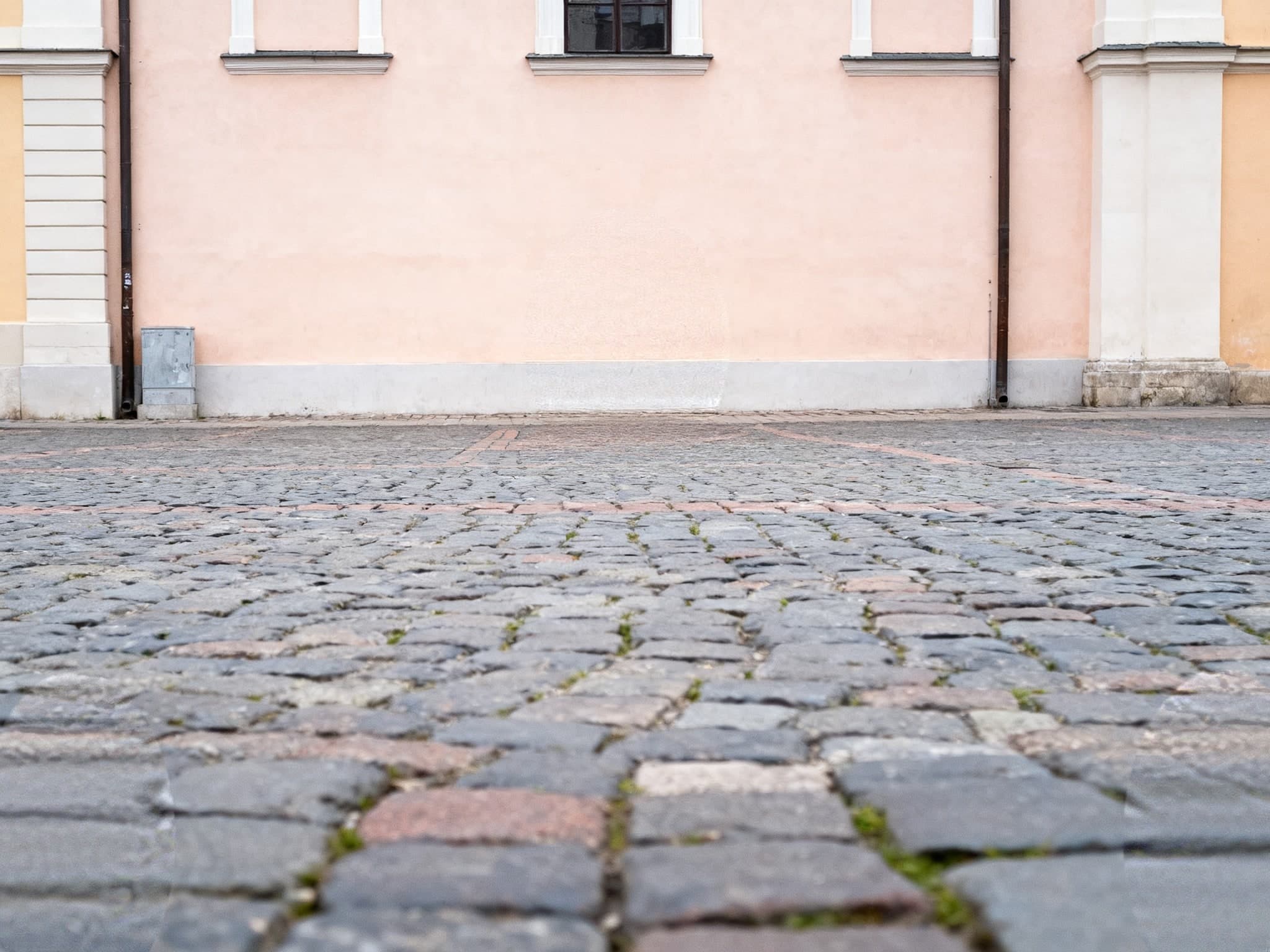
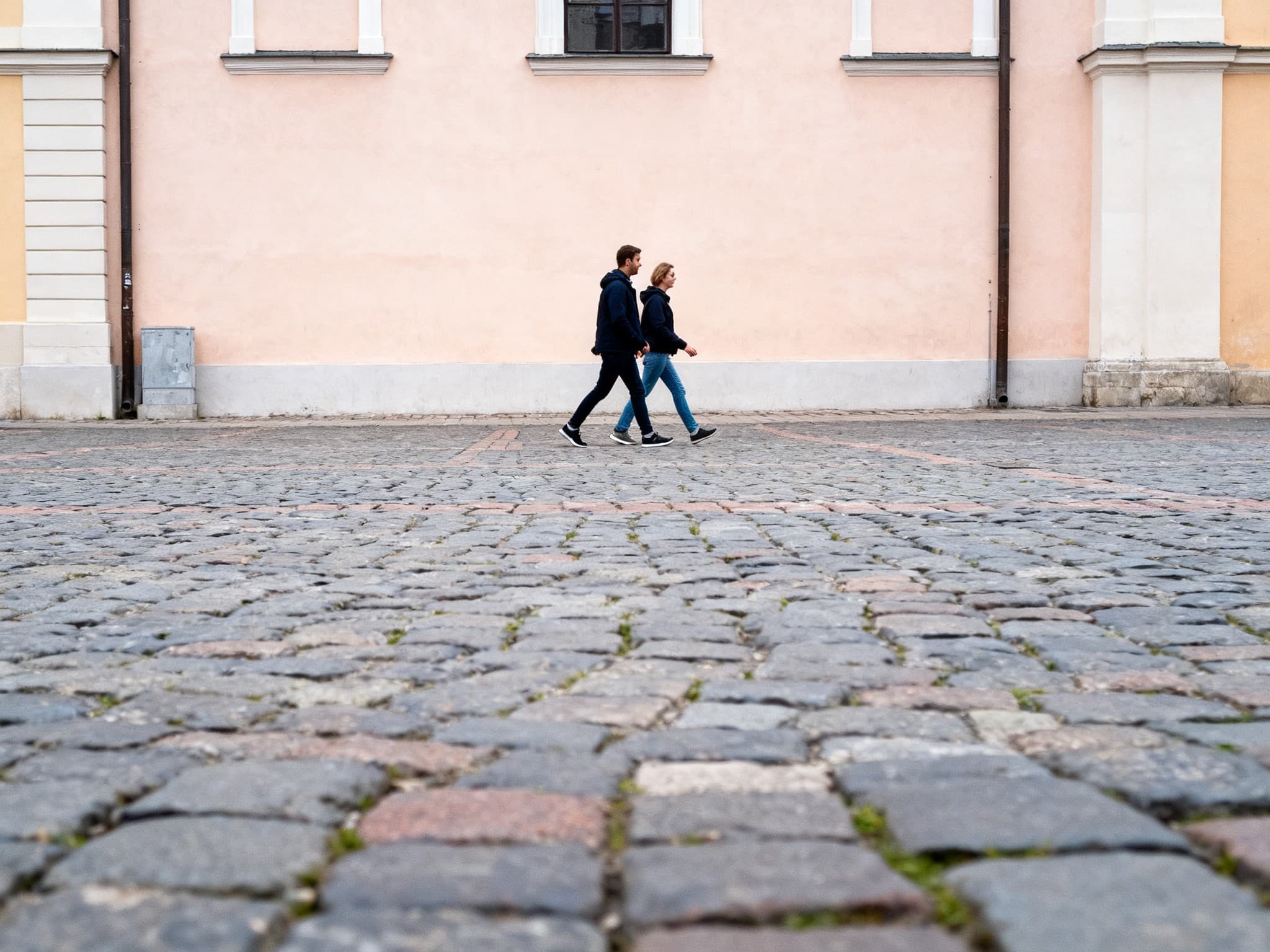


How to remove a person from a photo
Upload the photo, brush over the person you want gone — a little past their outline so the AI sees clean edges around them — and click Erase. The model reconstructs the background that was hidden: it continues floor lines, re-fills grass or sky, and matches the light. For people who span complex backgrounds, erase in sections: legs first, then torso, checking each fill.
Crowds, photobombers, and strangers
Landmark shots are rarely people-free. Instead of waiting for a gap in the crowd, take the photo you want and clean it after — brush each tourist one by one and watch the plaza empty out. The same goes for the random stranger who walked into your frame at the exact wrong moment, or the background crowd at a wedding.
Removing a person and keeping it natural
The best erases leave no silhouette and no blur. Two habits get you there: brush generous margins so the fill has clean context, and check the boundary where the person overlapped repeating patterns (tiles, fences, waves) — a quick second pass on just that seam makes it invisible. Erasing a thing rather than a person? The object remover page covers bins, signs, and clutter with the same brush.
Your memories, your choice
Old photos carry people you may not want in the frame anymore. Removing a person from your own photo is your call — keep the memory, lose the background noise. The tool never asks why; it just cleans the image.
Frequently Asked Questions
How can I remove people from a photo for free?
Upload your photo here, brush over each person, and click Erase. 6 free edits a day (3 manual + 3 AI auto), no signup, no watermark.
Does it work on crowds of people?
Yes — erase people one at a time so each fill gets clean surroundings. Start with the ones at the edges of the crowd.
Can it remove a person from a busy background?
It can. Repeating textures (tiles, bricks, grass) rebuild convincingly. For people crossing many patterns, erase in vertical sections and re-brush seams if needed.
Will the photo look edited afterwards?
Most erases are indistinguishable from the original background. The AI fills from surrounding pixels, so there's no pasted-patch look.
Can I remove myself from a group photo?
Sure — brush yourself out just like anyone else. It's your photo.